Click to watch a video of the process
Web Editor
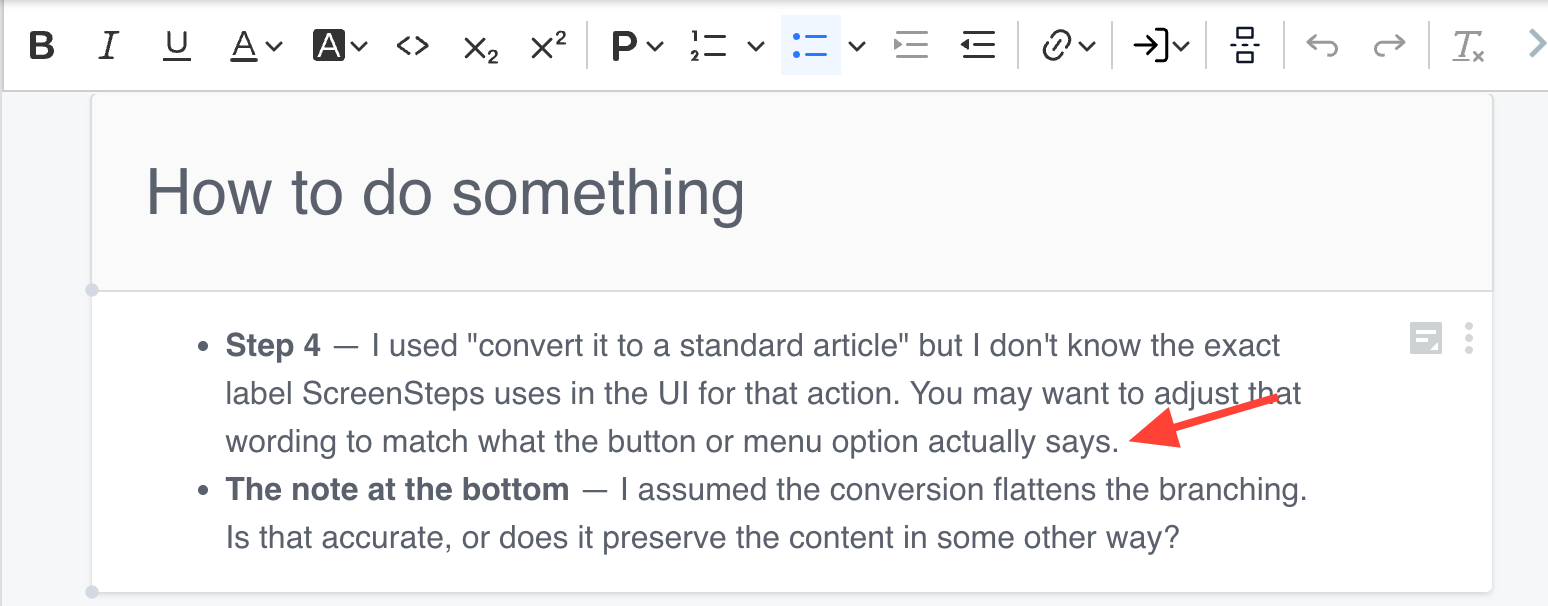
- Place your cursor where you want to split the paragraph.
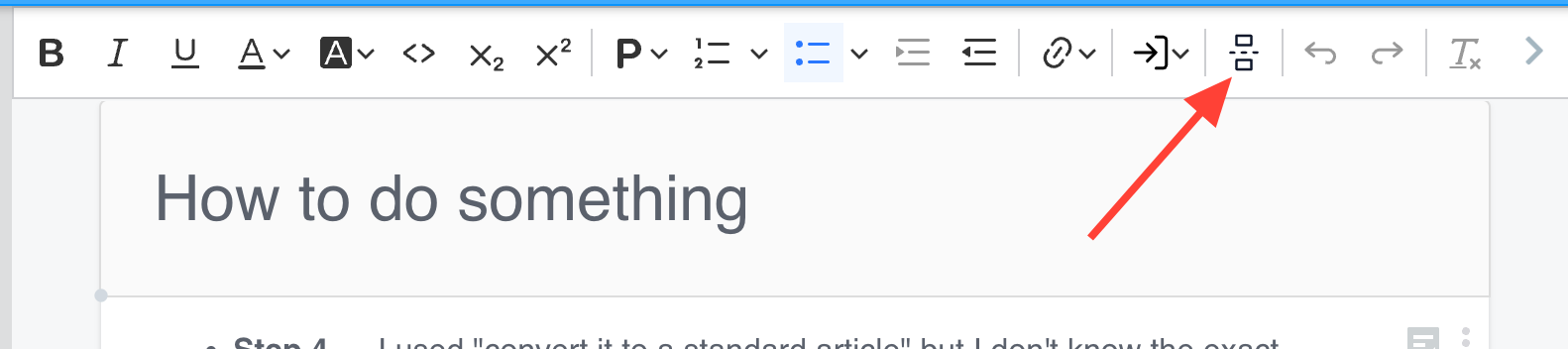
- Click the split content icon.
- Add an image between the two new paragraph blocks.
Click the + Icon 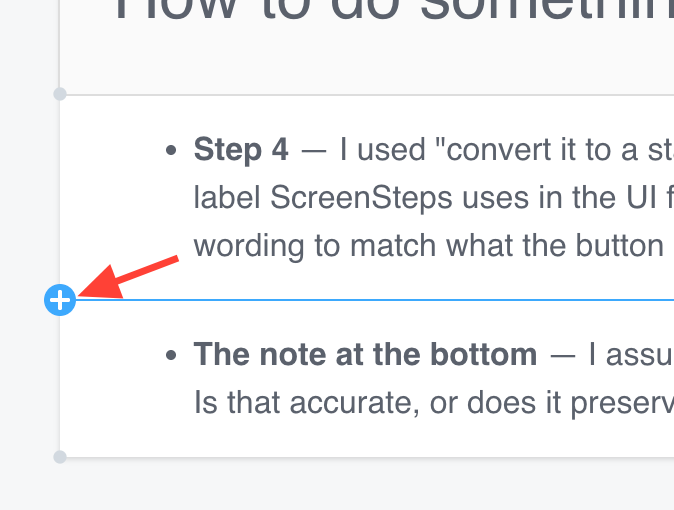
Add Image 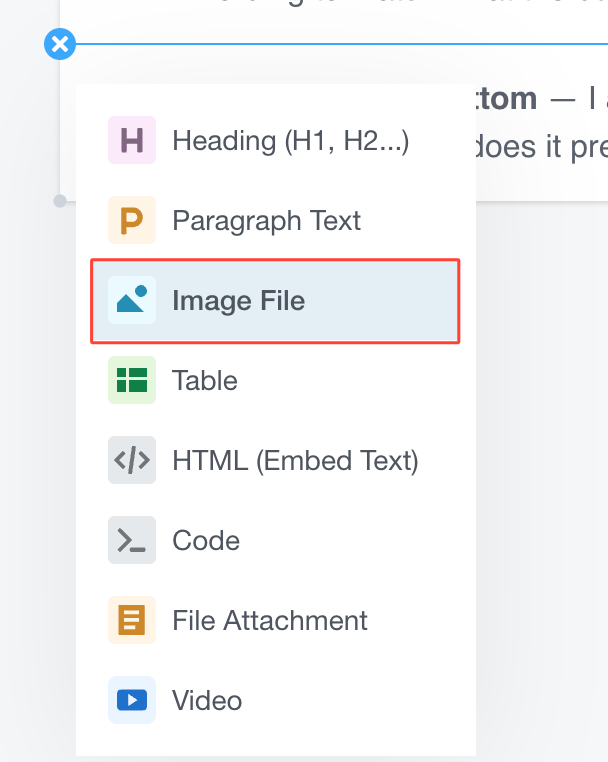
Desktop Editor
- Select the text below where you want the image.
- Cut the selected text (Command-X on Mac, Control-X on PC).
- Add a new paragraph block below.
- Paste the text into the new block.
- Add an image between the two blocks.